How to Verify Your Mastodon Account
Prove it's really you in 3 steps
Why Verify?
A green checkmark on your website link tells people this is your official account - not an impersonator.

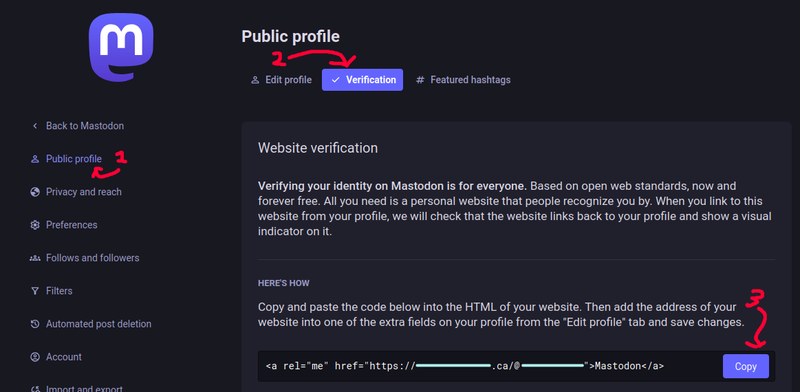
Step 1: Get the verification code
Log into Mastodon → Preferences → Public Profile → Verification tab → Copy the HTML code

Step 2: Add it to your website
Paste that code into your official website.
If you have a web team, send it to them and ask them to add it to your homepage.
Tip: To better showcase your Mastodon presence, send this icon to your web team as well!
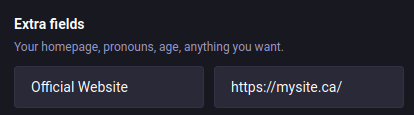
Step 3: Add your website to your profile
Back in Mastodon's Preferences page, go to Edit Profile → Extra Fields → Type your website URL → Save
That's it
Your website link will turn green in about 12 hours, varying depending on how busy your instance is.
Need help?
Give our Mastodon Account a private ping, and we'll be happy to offer advice.

Open Source enthusiast turned political organizer. I believe that decentralized & auditable technologies are key to unlocking digital sovereignty and strengthening our democracy.
More →